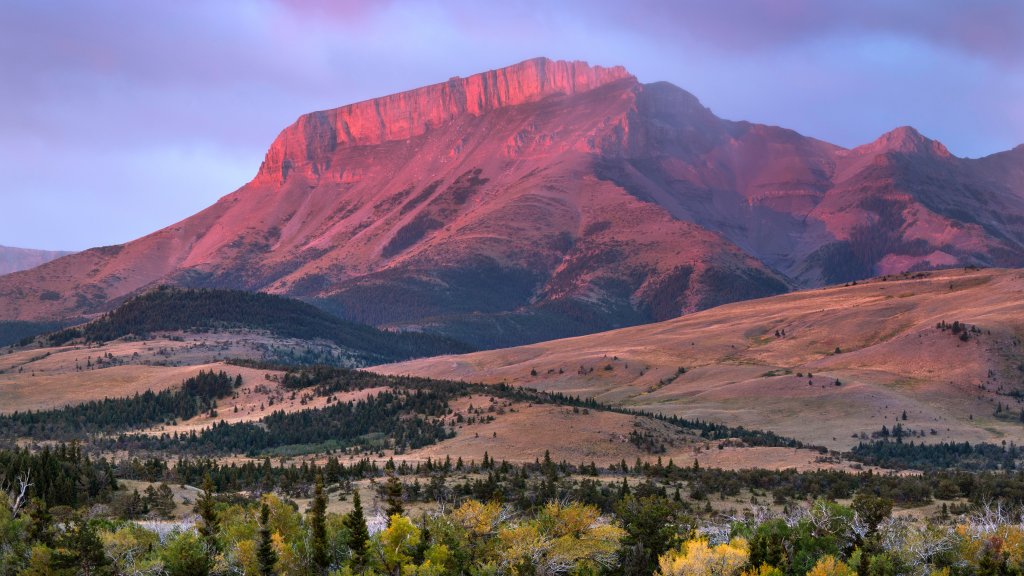
Ear Mountain, Rocky Mountain Front, Montana
Sign in to add this photo to your favorites and desktop wallpaper rotation.
Ear Mountain is a notable geographic feature located in the Rocky Mountain Front of Montana, within the Lewis and Clark National Forest. It is situated in Teton County, near the small town of Choteau. The mountain is part of the larger Rocky Mountains range and is known for its distinctive shape, which resembles an ear, hence its name. The area around Ear Mountain is characterized by rugged terrain, diverse wildlife, and scenic landscapes, making it a popular destination for outdoor enthusiasts. Activities such as hiking, wildlife viewing, and photography are common in the region. The mountain and its surroundings offer opportunities to explore the natural beauty of Montana, with various trails and access points for adventurers. Ear Mountain is also of interest to geologists and naturalists due to its unique geological formations and the diverse ecosystems found in the area. The region is home to a variety of plant and animal species, some of which are unique to the Rocky Mountain Front. Overall, Ear Mountain is a significant landmark in Montana, attracting visitors who appreciate its natural beauty and the recreational opportunities it provides.